
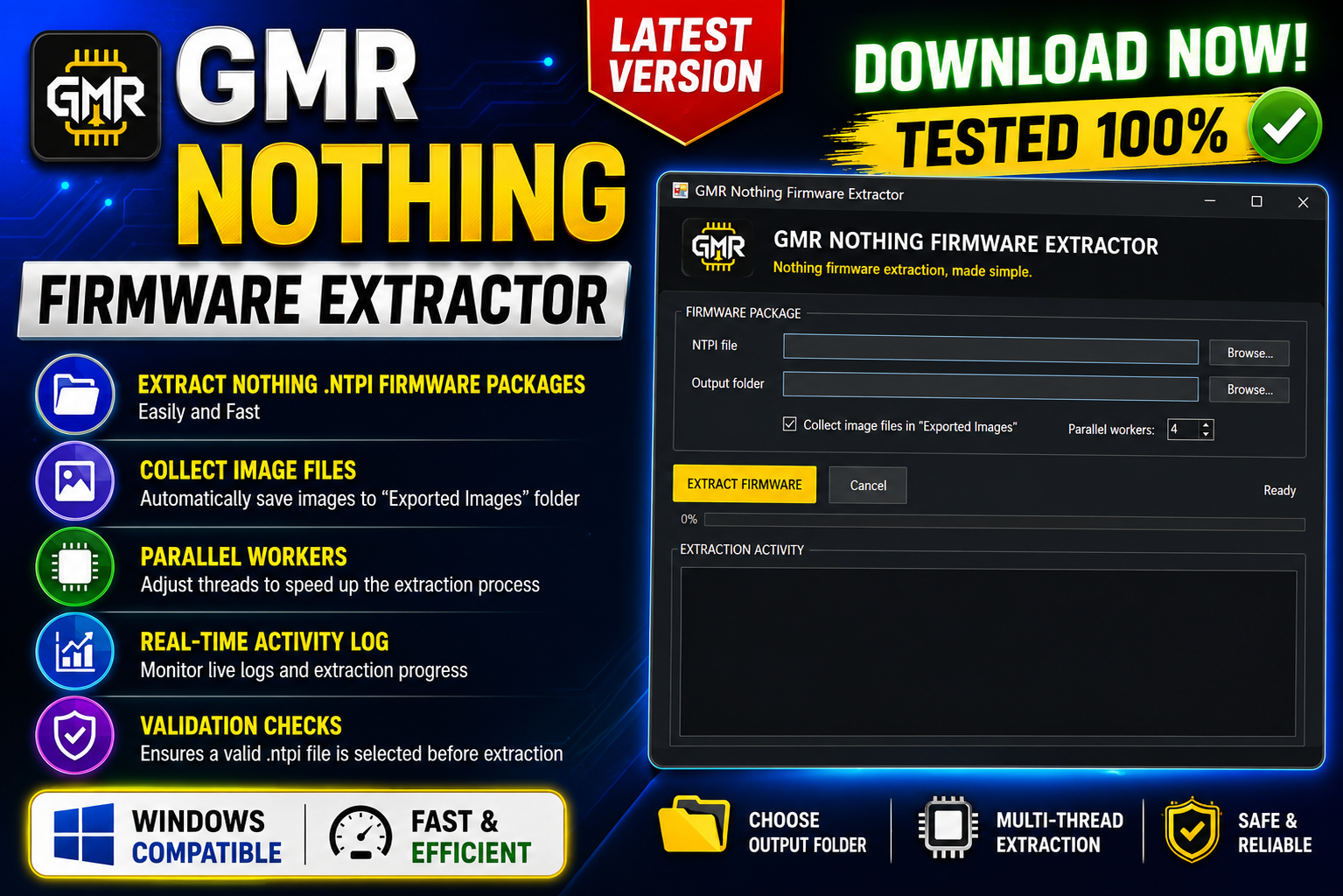
GMR Nothing Firmware Extractor Latest Version is a simple Windows utility designed for users who need to extract Nothing .ntpi firmware packages. The tool provides an easy graphical interface where users can select a firmware package, choose an output folder, and extract the required firmware files.
Instead of manually handling firmware packages, GMR Nothing Firmware Extractor helps organize the extraction process through a single-window interface. It also includes useful options such as Parallel Workers, an Exported Images folder, and a real-time extraction activity log.
The latest version is focused specifically on Nothing .ntpi firmware extraction and provides validation before starting the extraction process. This makes it easier to work with compatible Nothing firmware packages on a Windows PC.
For more information: official website.
Main Tools
GMR Nothing Firmware Extractor includes several practical tools for firmware extraction:
- Nothing
.ntpiFirmware Extractor – Extract files from supported Nothing firmware packages. - Custom Output Folder – Select where extracted firmware files should be saved.
- Exported Images Folder – Automatically organize extracted image files into a separate folder.
- Parallel Workers – Adjust the number of workers for multi-threaded extraction.
- Live Activity Log – Monitor the extraction process in real time.
- Firmware Validation – Checks whether a valid
.ntpifirmware package has been selected. - Simple GUI – Perform extraction from one easy-to-use Windows interface.
Key Features
1. Supports Nothing .ntpi Firmware:
The main purpose of GMR Nothing Firmware Extractor is to extract supported Nothing .ntpi firmware packages. Users can select the required firmware file and start the extraction process without complicated commands.
2. Custom Extraction Location:
The software allows users to choose a custom output folder. This is useful when you want to keep firmware files organized on a specific drive or in a dedicated working folder.
3. Exported Images Folder:
An optional feature allows extracted image files to be collected into an Exported Images folder. This can make it easier to locate and manage image files after the extraction process is complete.
4. Configurable Parallel Workers:
GMR Nothing Firmware Extractor includes a Parallel Workers setting. Users can configure multi-threaded processing to help improve extraction performance when working with larger firmware packages.
5. Real-Time Activity Console:
The built-in extraction activity window displays live log output while the firmware is being processed. This allows users to monitor the extraction process and see what the tool is doing.
6. Firmware Package Validation:
Before extraction starts, the application checks whether a valid .ntpi firmware package has been selected. This validation helps prevent the extraction process from being started without a compatible firmware file.
7. Simple Graphical Interface:
The software uses a straightforward single-window graphical interface. Users do not need to work with complicated command-line instructions for the basic extraction process.
Supported Functions
The main supported functions of GMR Nothing Firmware Extractor include:
- Extract Nothing
.ntpifirmware packages. - Select a custom extraction directory.
- Export extracted image files into an Exported Images folder.
- Configure Parallel Workers for multi-threaded extraction.
- View real-time extraction activity and logs.
- Validate the selected
.ntpifirmware package. - Start firmware extraction through the EXTRACT FIRMWARE button.
- Manage the extraction process from a single graphical interface.
Technical Setup Details
- Tool Name: GMR Nothing Firmware Extractor
- Platform: Windows PC
- Firmware Format: Nothing
.ntpi - Interface: Graphical User Interface (GUI)
- Processing: Multi-threaded extraction
- Parallel Workers: Configurable
- Output: Custom extraction folder
- Image Organization: Exported Images folder option
- Activity Monitoring: Real-time extraction console
- Input Validation: Supported
.ntpipackage validation - Archive: RAR installer archive
- Required Utility: WinRAR or another compatible archive extractor
How to Install GMR Nothing Firmware Extractor
Follow these steps to install the latest version:
Step 1: Download the Installer
Download the GMR Nothing Firmware Extractor installer archive to your Windows computer from this website.
Step 2: Extract the RAR File
After downloading, right-click the RAR archive and extract it using WinRAR or another compatible archive extraction tool.
Step 3: Run the Setup
Open the extracted folder and run the setup file to begin the installation.
Step 4: Handle Windows SmartScreen
If Windows SmartScreen displays a warning, click More info and then select Run anyway if you trust the source of the installer.
Step 5: Complete Installation
Follow the instructions shown by the installation wizard and allow the setup process to finish.
Step 6: Launch the Tool
After installation, open GMR Nothing Firmware Extractor from your desktop or Start Menu.
Step 7: Select Firmware
Select the compatible Nothing .ntpi firmware file that you want to extract.
Step 8: Choose Output Folder
Select the folder where you want the extracted firmware files to be saved.
Step 9: Adjust Optional Settings
If required, adjust the Parallel Workers setting and enable the Exported Images folder option.
Step 10: Extract Firmware
Finally, click EXTRACT FIRMWARE to start the extraction process. You can monitor the progress through the built-in activity console.
GMR Nothing Firmware Extractor Latest Version is a useful utility for users who need to extract supported Nothing .ntpi firmware packages on Windows. Its simple interface makes the extraction process easier, while features such as custom output folders, Exported Images organization, Parallel Workers, firmware validation, and live extraction logs provide additional control.
If you regularly work with Nothing firmware files, this extractor can simplify the process of unpacking supported .ntpi packages and organizing the resulting files. Always use firmware packages appropriate for your exact device and keep backups of important files before performing firmware-related operations.
Read Also: Sigma Plus Key v1.01.13