
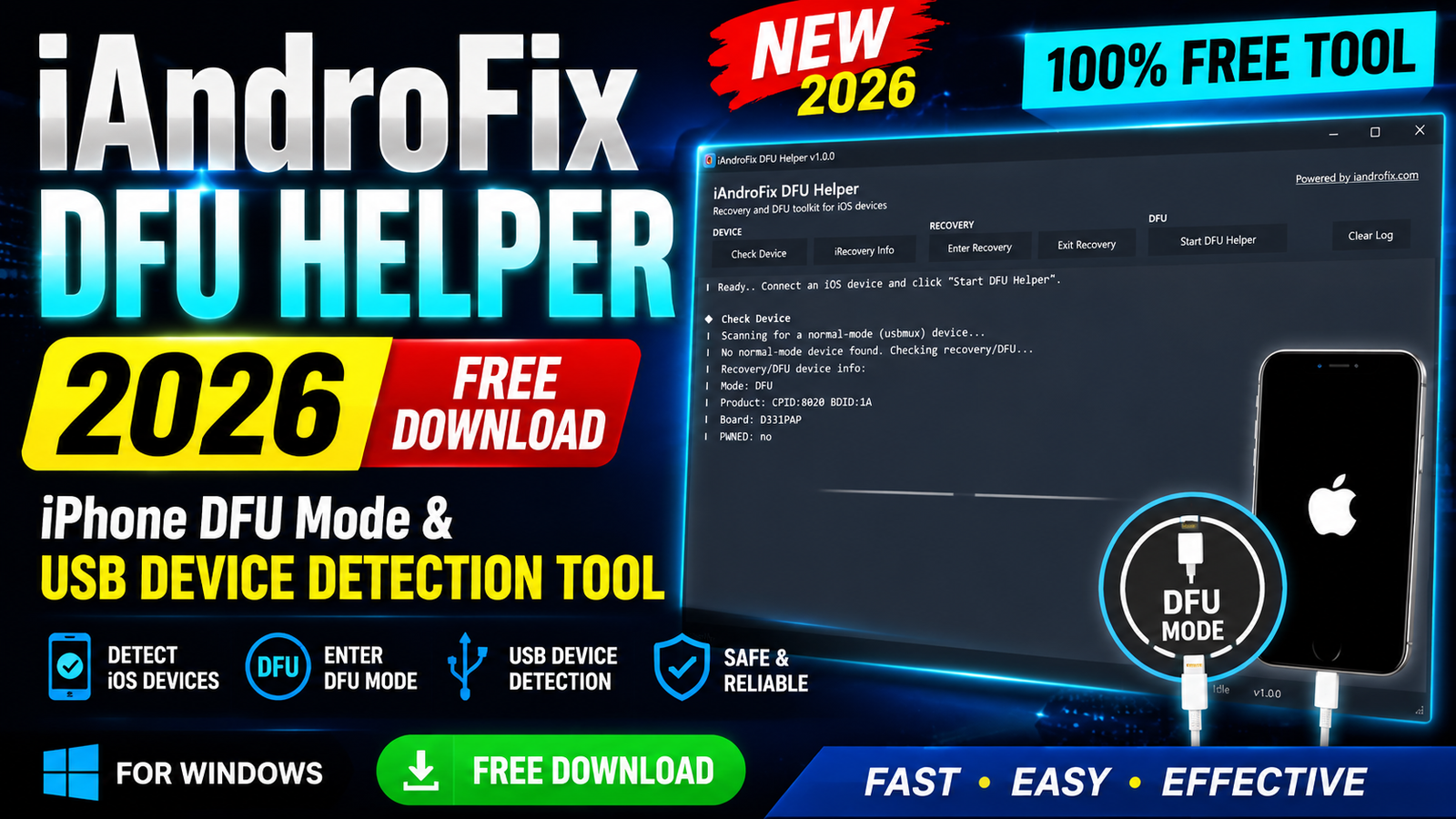
iAndroFix DFU Helper 2026 is a lightweight and portable Windows tool designed to help users detect iPhones in DFU or Recovery Mode through a USB connection. It provides useful device information directly in its log window, making it easier to understand the current connection and device mode.
During my testing, I connected an iPhone through USB and clicked Check Device. The tool detected the phone in DFU mode without any error. The log clearly displayed the device status and explained what was happening during the detection process.
The latest 2026 version also comes with a cleaner implementation because the third-party console dependency has been removed and the program now uses a native API implementation.
For more imformation: official website.
Main Tools
The iAndroFix DFU Helper interface includes several useful options:
- Check Device – Scans the connected iPhone and detects its current USB mode.
- iRecovery Info – Displays recovery-related device information.
- Enter Recovery – Helps place a supported device into Recovery Mode.
- Exit Recovery – Helps exit Recovery Mode.
- Start DFU Helper – Provides assistance for the DFU process.
- Clear Log – Clears the information displayed in the log window.
These options keep the program focused on DFU and Recovery operations instead of adding unnecessary features.
Key Features
The main features I found in iAndroFix DFU Helper 2026 include:
- iPhone DFU mode detection
- Recovery mode detection
- USB device detection
- Device information through the log window
- Product ID and board information
- PWNED status display
- Enter Recovery function
- Exit Recovery function
- DFU Helper function
- Instant log updates
- Portable application
- No installation required
- No extra console window
- Native API implementation
- Lightweight and simple interface
Supported Functions
The tool is mainly focused on iPhone USB, Recovery, and DFU operations.
Device Detection:
The Check Device option scans the connected device and reports whether it has been detected in Recovery or DFU mode.
DFU Mode Information:
When a device is detected in DFU mode, the log can show information such as:
- Current device mode
- Product ID
- Board information
- PWNED status
- Recovery/DFU detection status
Recovery Mode:
The tool includes options for entering and exiting Recovery Mode, making it useful for basic iPhone recovery-related tasks.
DFU Helper:
The Start DFU Helper option is included to assist with the DFU process.
What Information Does iAndroFix DFU Helper Show?
During my testing, the log section displayed several useful details about the connected iPhone.
The information can include:
- Current device mode
- Product ID
- Board information
- PWNED status
- Recovery or DFU detection status
For example, my test device showed:
Mode: DFU
Product ID: CPID:8200 BDID:1A
Board: D331PAP
PWNED: no
This makes the tool useful when you need to quickly confirm whether an iPhone has been detected correctly.
What I Found During Testing:
The application opened very quickly on my Windows PC. I did not see an additional command prompt or console window running in the background.
The new native API implementation makes the interface feel cleaner compared with tools that depend on third-party console components.
Another useful point is that the log updates immediately after clicking the available buttons. During my testing, device detection worked without noticeable delay.
The program is also portable, so there is no traditional installation process.
Technical Setup Details
- Tool Name: iAndroFix DFU Helper 2026
- Operating System: Windows PC
- Application Type: Portable utility
- Installation: Not required
- File Format: 7Z compressed archive
- File Name:
iAndroFixDFUHelper.7z - Archive Password:
iAndroFix - Connection: USB cable
- Device Support: iPhone/iOS devices in supported DFU or Recovery modes
- Device Detection: USB Recovery/DFU detection
- Detection Information: Product ID, Board, Mode, and PWNED status
- Interface: Simple graphical interface with real-time log output
- Console Dependency: Removed in the 2026 version
- API: Native API implementation
- Internet Requirement: Not specified for basic device detection
- Extra Installation: No additional program installation required
- Testing Result: DFU device detected successfully without errors
How to Install iAndroFix DFU Helper
Although the tool does not require a traditional installation, follow these steps to start using it:
- Download the iAndroFixDFUHelper.7z archive.
- Install or open 7-Zip on your Windows computer.
- Right-click the downloaded archive and choose the extraction option.
- Enter the archive password when requested: iAndroFix
- Open the extracted folder.
- Run the iAndroFix DFU Helper executable.
- Connect your iPhone to the computer with a suitable USB cable.
- Put the iPhone into DFU or Recovery Mode when required.
- Click Check Device.
- Check the log window for the detected device information.
Important: DFU and Recovery operations can affect the state of an iPhone. Make sure you understand the function you are using before performing device changes.
iAndroFix DFU Helper 2026 is a simple and portable Windows utility for iPhone DFU Mode and USB device detection. It can detect Recovery/DFU devices and display information such as the Product ID, board, current mode, and PWNED status through its log window.
The latest 2026 version also removes the third-party console dependency and uses a native API implementation, giving the program a cleaner interface.
If you need a lightweight tool for checking whether an iPhone is properly detected in DFU or Recovery Mode, iAndroFix DFU Helper is worth testing.
Read Also: Evaer Video Recorder for Skype 1.8.9.27