
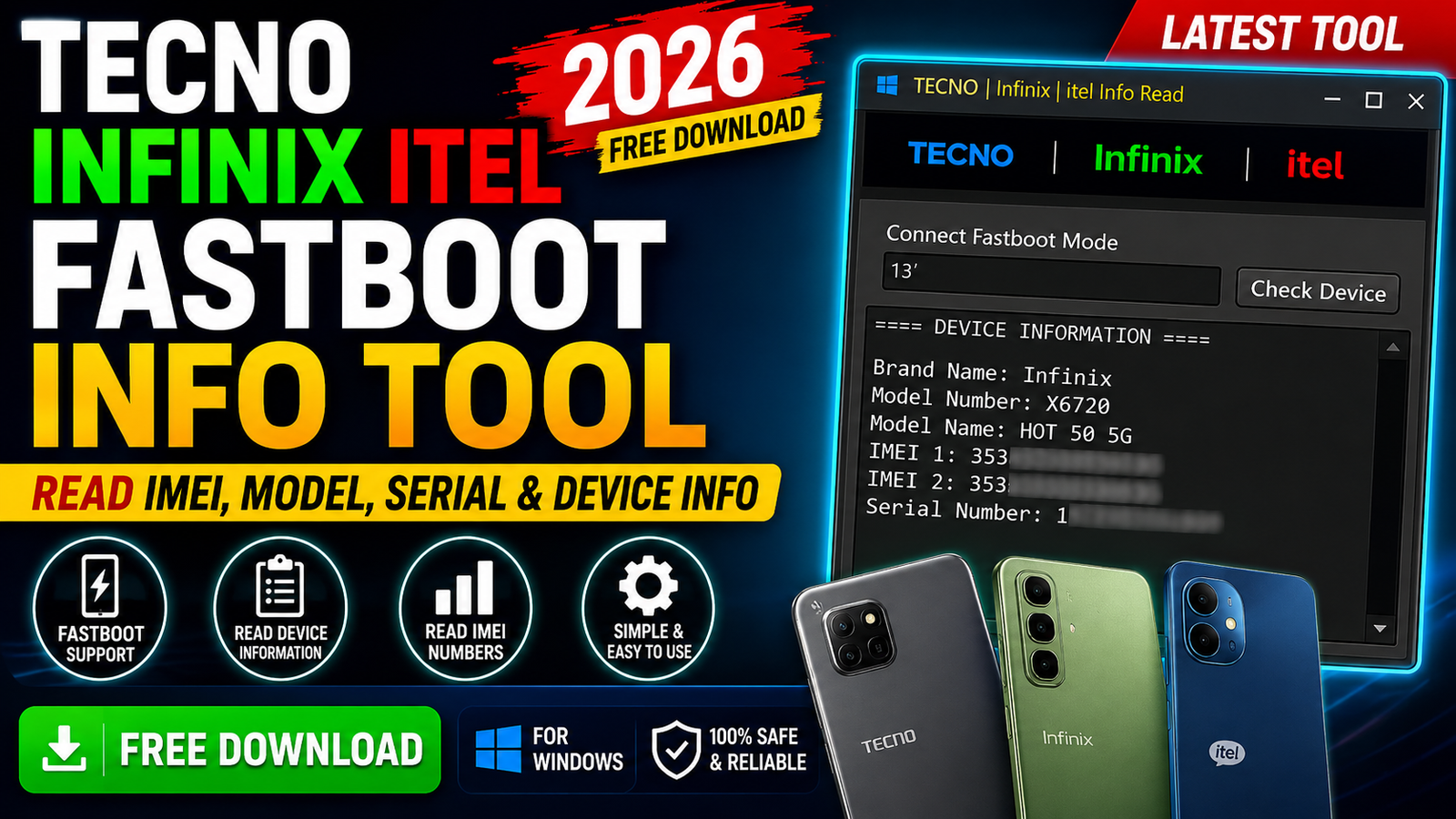
If you work with Tecno, Infinix, or itel Android devices, checking basic phone information in Fastboot Mode can be useful during software repair and troubleshooting. The Tecno Infinix Itel Fastboot Info Tool 2026 is a lightweight Windows utility designed to read important device information through Fastboot Mode.
The tool can display details such as the brand name, model number, model name, IMEI 1, IMEI 2, and serial number. It is especially useful when you need to quickly identify a supported device before performing other software-related operations.
In my real-time testing, I connected an Infinix phone in Fastboot Mode and used the Check Device option. The tool detected the phone within a few seconds and displayed its information without requiring the bootloader to be unlocked.
For more information: official website.
Main Tools
The Tecno Infinix Itel Fastboot Info Tool includes a simple interface focused on device information reading.
- Fastboot device detection
- Tecno device information reading
- Infinix device information reading
- itel device information reading
- IMEI information reading
- Model information reading
- Serial number reading
- Brand identification
- Fastboot connection checking
- One-click Check Device function
Key Features
Fastboot Device Detection:
The tool can detect a connected Android phone when it is properly booted into Fastboot Mode. This makes it useful for technicians who need to identify a device before continuing with software work.
Read IMEI Information:
The utility can show the available IMEI information from the connected device, including:
- IMEI 1
- IMEI 2
Read Model Information:
After detecting the phone, the software can display the device model number and model name. This can help identify the exact handset connected to the computer.
Serial Number:
The tool can also read and display the device’s serial number through the Fastboot connection.
Simple Interface:
The program uses a straightforward interface with a Check Device button, making it easy to use even if you only need basic device information.
No Bootloader Unlock Required in My Test:
During my testing, the Infinix device was detected and its information was displayed without asking me to unlock the bootloader. However, results can vary depending on the device, firmware, security level, and Fastboot implementation.
Supported Functions
The main supported functions of the Tecno Infinix Itel Fastboot Info Tool 2026 include:
- Check Fastboot device
- Read brand name
- Read device model number
- Read model name
- Read IMEI 1
- Read IMEI 2
- Read serial number
- Display basic device information
- Detect connected Fastboot devices
The tool is primarily designed for information reading, rather than firmware flashing or advanced repair operations.
My Real-Time Testing:
I tested the tool with an Infinix device running in Fastboot Mode. First, I powered off the phone and entered Fastboot Mode by holding the Volume Down button while connecting the USB cable to the PC.
After Windows recognized the connection, I opened the tool and clicked the Check Device button. Within a few seconds, the software detected the phone and displayed its available device information.
The tool showed details including the brand, model, IMEI information, and serial number. In my test, I did not need to unlock the bootloader to read the displayed information.
Technical Setup Details
- Operating System: Windows PC
- Connection: USB cable
- Device Mode: Fastboot Mode
- Required Connection: Stable USB connection
- Device Brands: Tecno, Infinix, and itel
- Drivers: Compatible USB/Fastboot drivers may be required
- Internet: Generally not required for basic local device detection
- Permissions: Run the program as Administrator if Windows permissions cause detection problems
How to Install Tecno Infinix Itel Fastboot Info Tool
The tool is portable, so installation is generally straightforward.
Step 1: Download the Tool
Download the Fastboot Info Tool archive from this website.
Step 2: Extract the RAR File
After downloading, right-click the RAR archive and extract it using a suitable archive utility such as 7-Zip or WinRAR.
Step 3: Open the Tool
Open the extracted folder and launch the tool’s executable file.
Step 4: Prepare the Phone
Power off the Tecno, Infinix, or itel device and boot it into Fastboot Mode using the appropriate key combination for that model.
Step 5: Connect USB
Connect the phone to the Windows computer with a USB cable. Make sure the Fastboot drivers are installed correctly.
Step 6: Check Device
Open the program and click Check Device. If the connection is working correctly, the available phone information should appear on the screen.
The Tecno Infinix Itel Fastboot Info Tool 2026 is a simple Windows utility for reading basic information from compatible Tecno, Infinix, and itel devices through Fastboot Mode. During my real-time test, the tool detected an Infinix device within a few seconds and displayed the brand, model, IMEI 1, IMEI 2, and serial number.
If your main requirement is quickly checking device information without using a large repair suite, this Fastboot Info Tool can be a convenient option. For the best results, use the correct USB connection, Fastboot mode, and compatible drivers for your device.
Read Also: iAndroFix DFU Helper 2026