
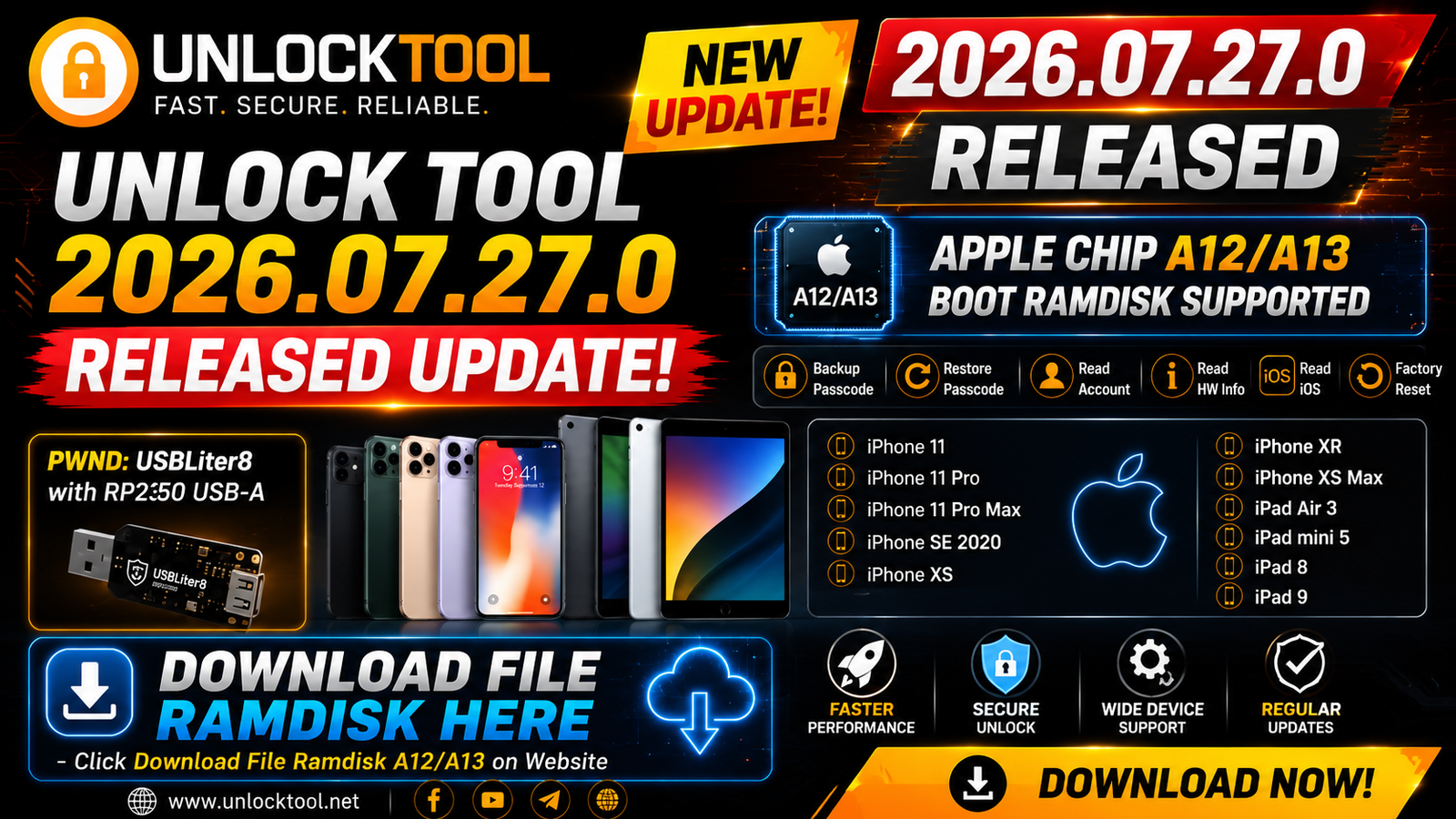
The Unlock Tool 2026.07.27.0 Released Update adds new Apple-related functionality focused on A12 and A13 chipset devices. The update provides Boot RAMDisk support for selected iPhone and iPad models.
The new release is especially useful for technicians who need to access device information, manage supported passcode operations, check Apple account information, read iOS details, or perform a factory reset on compatible devices.
The update also introduces PWND support through USBLiter8 with RP2350 USB-A, providing the required hardware-based connection method for supported operations.
For more information: official website.
Main Tools
The main additions and functions included in Unlock Tool 2026.07.27.0 are:
- Apple A12/A13 Boot RAMDisk support
- Backup Passcode
- Restore Passcode
- Read Account
- Read Hardware Information
- Read iOS Information
- Factory Reset
- PWND support
- USBLiter8 with RP2350 USB-A support
- Support for selected iPhone and iPad models
Key Features
1. Apple A12/A13 Boot RAMDisk Support:
One of the major improvements in this release is Boot RAMDisk support for Apple A12 and A13 devices. This expands the available functionality for compatible Apple hardware.
2. Backup Passcode:
The new version provides a Backup Passcode function for supported devices. Technicians can use the feature as part of supported device servicing workflows.
3. Restore Passcode:
Unlock Tool 2026.07.27.0 also includes a Restore Passcode option for compatible devices.
4. Read Account:
The update adds the ability to Read Account information on supported Apple devices, making it easier for technicians to inspect available device information.
5. Read HW Info:
The Read HW Info function provides hardware-related information from compatible devices. This can help technicians identify device details before servicing.
6. Read iOS:
Technicians can use the Read iOS option to check iOS-related information from supported Apple devices.
7. Factory Reset:
The latest release also includes a Factory Reset function for supported devices. This can be useful during legitimate repair, testing, and device preparation workflows.
8. PWND with USBLiter8:
The update supports PWND using USBLiter8 with RP2350 USB-A. Compatible hardware is required for this functionality.
Supported Functions
The following functions are available for supported Apple A12/A13 devices:
- Backup Passcode
- Restore Passcode
- Read Account
- Read HW Info
- Read iOS
- Factory Reset
- Boot RAMDisk support
- PWND: USBLiter8 with RP2350 USB-A
Supported Apple Devices:
Unlock Tool 2026.07.27.0 supports the following devices according to the provided update information:
iPhone
- iPhone 11
- iPhone 11 Pro
- iPhone 11 Pro Max
- iPhone SE 2020
- iPhone XS
- iPhone XR
- iPhone XS Max
iPad
- iPad Air 3
- iPad mini 5
- iPad 8
- iPad 9
Note: Availability of individual functions can depend on the device model, iOS version, security state, connection mode, and required hardware.
Technical Setup Details
- Tool Version: Unlock Tool 2026.07.27.0
- Platform: Windows PC
- Supported Chipsets: Apple A12 / A13
- Main Technology: Apple Boot RAMDisk
- PWND Hardware: USBLiter8 with RP2350 USB-A
- Connection: USB cable
- Required Drivers: Apple USB drivers
- Supported Devices: iPhone 11 series, iPhone XS/XR series, iPhone SE 2020, iPad Air 3, iPad mini 5, iPad 8, and iPad 9
- Available Functions: Backup Passcode, Restore Passcode, Read Account, Read HW Info, Read iOS, and Factory Reset
- USB Connection: Use a stable and good-quality USB cable
- System Requirement: Compatible Windows computer with required drivers installed
- Hardware Requirement: USBLiter8 with RP2350 USB-A for supported PWND operations
How to Install Unlock Tool 2026.07.27.0
Follow these general steps to install the latest release:
Step 1: Download the Tool
Download the Unlock Tool 2026.07.27.0 package from this website.
Step 2: Extract the Package
If the downloaded file is compressed, extract it using a suitable archive utility such as 7-Zip or WinRAR.
Step 3: Run the Setup
Open the extracted folder and run the Unlock Tool setup or executable file.
Step 4: Install Required Drivers
Make sure the required Apple USB drivers are installed on your Windows computer. Drivers allow the PC and Unlock Tool to communicate correctly with the connected device.
Step 5: Connect the Device
Connect a supported iPhone or iPad using a good-quality USB cable. Put the device into the required connection mode according to the operation you want to perform.
Step 6: Use the Apple Module
Open the Apple section inside Unlock Tool and select the required function, such as:
- Read HW Info
- Read iOS
- Read Account
- Backup Passcode
- Restore Passcode
- Factory Reset
For supported PWND operations, connect the required USBLiter8 with RP2350 USB-A hardware.
Step 7: Follow the On-Screen Instructions
Allow the tool to detect the device and carefully follow the instructions shown by the software. Do not disconnect the USB cable while an operation is running.
Important Notes:
- Use only compatible Apple models listed for this update.
- Make sure the required drivers are installed correctly.
- A stable USB connection is recommended.
- Some features may require USBLiter8 with RP2350 USB-A.
- Individual functions may depend on the iOS version and device security state.
- Always back up important data before performing reset or other service operations.
- Use these functions only on devices you own or are authorized to service.
Unlock Tool 2026.07.27.0 is an important update for technicians working with supported Apple A12/A13 devices. The release adds Boot RAMDisk support along with functions such as Backup Passcode, Restore Passcode, Read Account, Read HW Info, Read iOS, and Factory Reset.
The update supports several popular Apple devices, including the iPhone 11 series, iPhone XS/XR series, iPhone SE 2020, iPad Air 3, iPad mini 5, iPad 8, and iPad 9. It also introduces PWND support through USBLiter8 with RP2350 USB-A.
Read Also: Global Unlocker Tool 5.1.8.90